 Plugindex
Every plugin, as a picture
Plugindex photographs each plugin you installed, and takes the pictures of Studio Pro's own devices from Studio Pro itself. There is nothing to put in a folder first.
See every plugin you own as a picture, and put it on the selected track in Studio Pro with a click or a key.
14 days of Pro, then Free. No account, no card. Mac and Windows, with Studio Pro 8.
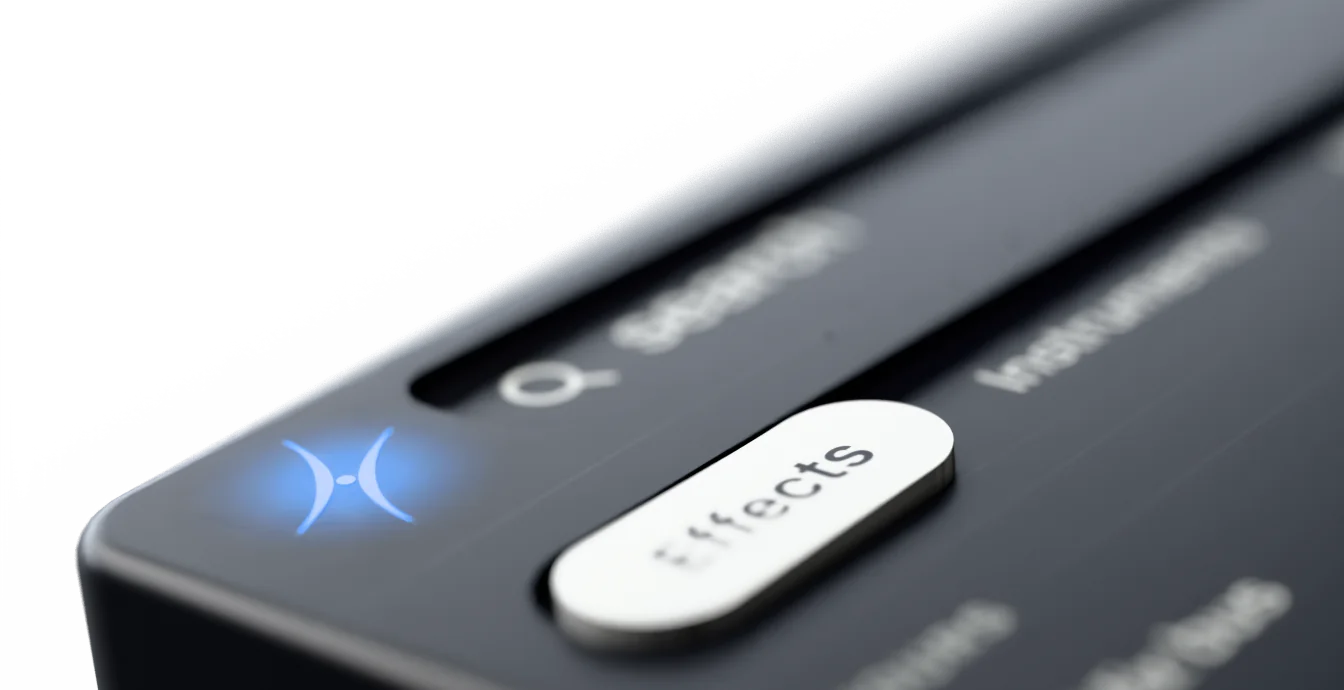
Studio Pro keeps plugins in its Browser and its Plug-In Manager, and three parts of them do the work.
Everything Studio Pro found
Open it from the View menu or the Browser's Home tab. Hide or show plug-ins by vendor or by type, and see the Blocklist of the ones that failed the scan. Update Plug-in List adds new installs.
Organized by hand
Drag plug-ins into the folders that make sense to you, or right-click to make a New Folder. Mark a plug-in as a Favorite, and the Recent list keeps your last 10.
Four ways to list them
In the Instruments and Effects tabs, sort by Flat, Folder, Vendor or Type. Click the search button and type a name, or a category such as Reverb.
Your plugins arrive in alphabetical order, by vendor, by type, or in the category folders Studio Pro provides. Any other order is a folder or a Favorite you set up yourself.
Plugindex reads your library from Studio Pro's own plugin list, so it knows every plugin Studio Pro has found. Studio One 7 works too, marked experimental in the app, since it hasn't been tried on a real Studio One 7 yet.
Plugindex photographs each plugin you installed, and takes the pictures of Studio Pro's own devices from Studio Pro itself. There is nothing to put in a folder first.
Compressors, limiters, reverbs, delays: sorted for you, down to the type, whatever category its maker gave it. Or type a few letters of a name or a maker and the grid comes down to it.
Click a plugin, or press the key you gave it. An effect lands on the selected track, without you opening the Browser.
Each instrument gets a new instrument track of its own, whatever is selected. Select a track for an effect first: with none selected, Studio Pro adds nothing.
Give a plugin a key in Studio Pro. The same key loads it in Ableton Live, Logic Pro, Pro Tools, FL Studio, Cubase, Nuendo, Bitwig Studio, REAPER and Digital Performer, wherever that plugin is installed.
Plugindex tells you when a key only works in the DAW you're in. Logic Pro is Mac only, and Pro Tools on Windows is still in progress.
Free keeps your whole library, with 75 loads a week and 3 mapped keys. Pro is $99 once, for unlimited loads and keys.
Download Free14 days of Pro first. No account, no card. See pricing
Plugindex for your other DAWs